• Home
Blue Orange Green Pink Purple

featured-content

Showing posts with label GMail Tricks. Show all posts

Make ‘Reply to All’ as Default Option in Gmail............

default reply to allGmail by default shows reply option in the rightmost 
 dropdown for any mail. However, for a section of people, who use Gmail for business purpose it is very inconvenient to select ‘reply to all‘ each time from the dropdown for keeping everyone in the loop.
Note: Just like outlook Ctrl + Shift + r shortcut key for replying to all, you can use single shortcut key ‘a’. [More Gmail shortcuts]
normal replyreply to all


A personal reply is always the preferable way for communication over emails. Reply to All is only suited in few cases where the recipients are aware of each other and belong to same category. Moreover, you could be included in BCC (Blank Carbon Copy) and a reply to all could potentially land you in trouble. It is also an annoyance for some who keep on receiving bulk email conversation threads. Therefore,everyone should use this feature with extra caution. Being said this, let’s look how to make reply to all as default button in Gmail.
This can easily be done with the use of Gmail Labs Feature. Follow these steps for changing default button action –
1) Go to Gmail Settings found at rightmost top of page.
2) Open Labs from Settings Page.
3) Press Ctrl+F for find the ‘reply to all’ feature.
4) Enable it and Save your settings.
Enable reply reply to all lab feature


That’s all. Now when you compose new mails, reply will be replaced by reply to all. You can find old single reply from the drop down. To bring back the old behaviour, you will need to deactivate this lab feature.
Read More 0 comments | edit post

Change ‘From’ Address in Gmail........


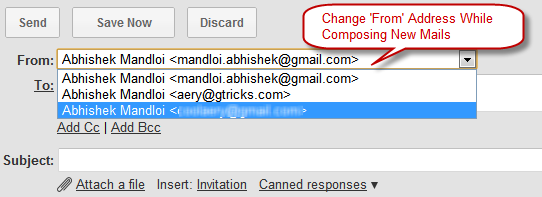
change from address while composing new mails
Gmail provides the flexibility to change the ‘From’ address while composing mails to anyone. In simple terms, you use only one Gmail account but send emails on behalf of other mail accounts. This is very useful feature for people with multiple mailing accounts. Moreover, the delegated email addresses need not belong to Gmail.
For Example – If your address is abc@gmail.com and you also use xyz@yahoo.comthen, without opening xyz@yahoo.com you can send a mail from xyz address.
Follow these steps to send mails from different addresses –
1) Go to Accounts and Imports tab from Gmail settings page.
sent mail as
2) Click on ‘Send mail from another address’ button found user Send mail as section.
Gmail - Add another email address
3) Follow the Gmail’s instruction and you are done.
You can also choose the address on which the replies will be sent.
After confirming the email, you will now find drop down in ‘From’ address displaying the other addresses. Now send mail from whichever account you want.
It’s a useful time saving method,
Note – In case you are wondering which Gmail theme I have used for these screenshots? The answer is the new clean minimalistic preview themes from Gmail team.
..........................................................................................................................
Read More 0 comments | edit post
Older Posts Home

i am THE GOOGLE

interesting information, hacking tricks and tips for THE GOOGLE.

i am THE GOOGLE

  • About
      interesting information, hacking tricks and tips for THE GOOGLE.
  • Sites

    • Graphic Designo

    category

    • Chrome Tricks (7)
    • GMail Tricks (2)
    • Google interesting information (5)
    • Google Tips (1)
    • Google Tricks (14)

    Blog Archive

    • August (17)
    • July (13)
  • Search


    • Home

    © Copyright i am THE GOOGLE. All rights reserved.
    powered by I AM HACKING | Bloggerized by iamhacking.blogspot.com
    brought to you by I AM

    Back to Top